
Shutter-priority camera · iPhone
S-Mode Camera
Freeze a moment.
Or let it flow.
You choose the shutter speed. Auto ISO handles the changing light. Capture crisp action or explore motion blur in photos and video, with creative control at your fingertips.
For iPhone with iOS 17 or later. Available camera settings depend on your device.
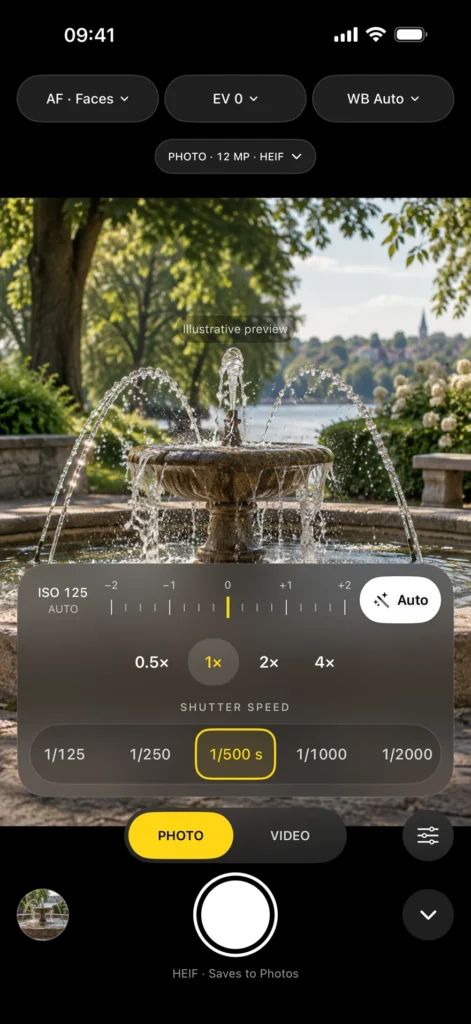
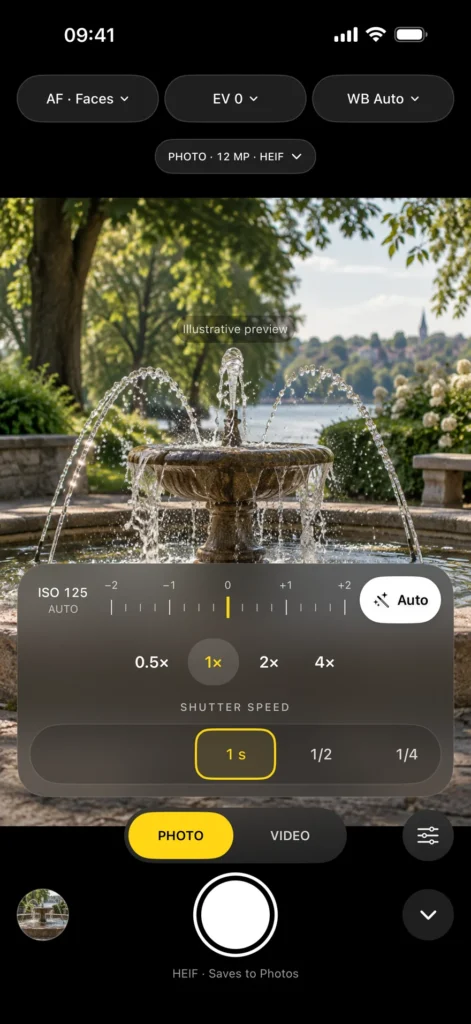
Your shutter. Your creative choice.
Find the motion.
Choose a fast shutter for less motion blur, or slow it down to show movement. Photo and Video remember their own shutter speeds.
Keep exposure in view.
Use the exposure meter, EV compensation and one-time Auto assistance. The app adjusts ISO within your camera’s limits.
Capture. Review. Carry on.
Photos and videos save to Photos. Browse, inspect, share and review your media without leaving the camera app.
Meet your camera controls.
Explore the current interface. Camera scenes shown in these screenshots are illustrative, not sample photos or footage captured by the app.
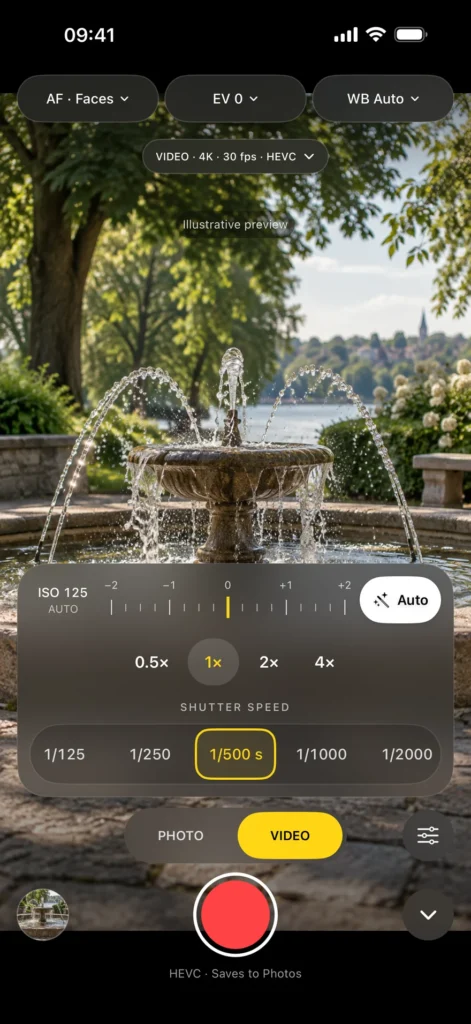
Video controls
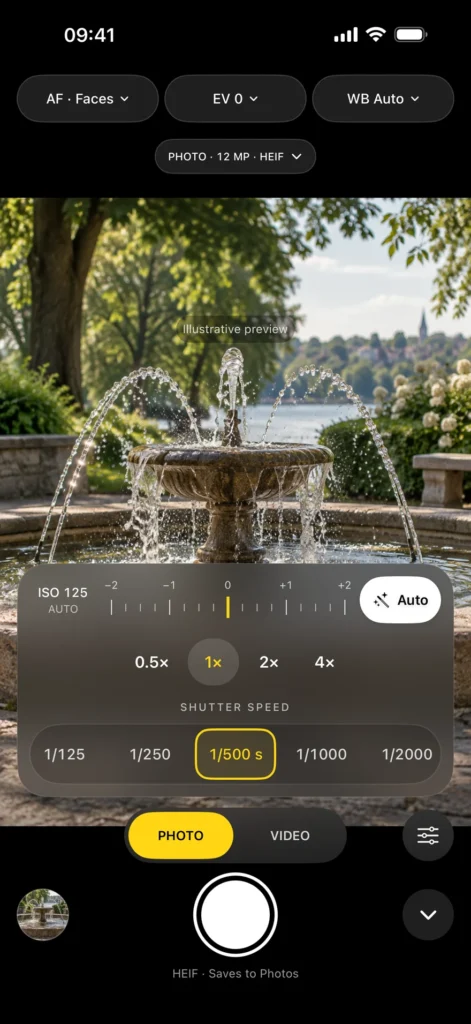
Photo controls
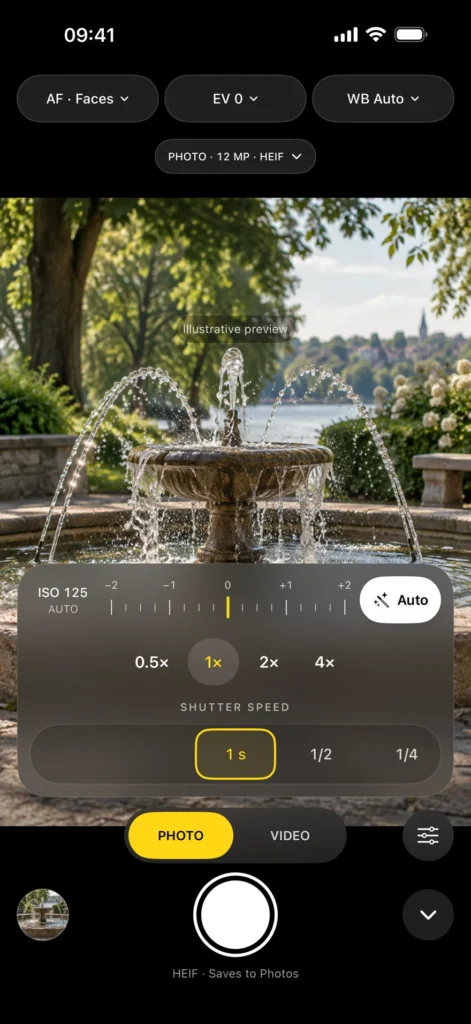
Long-exposure controls
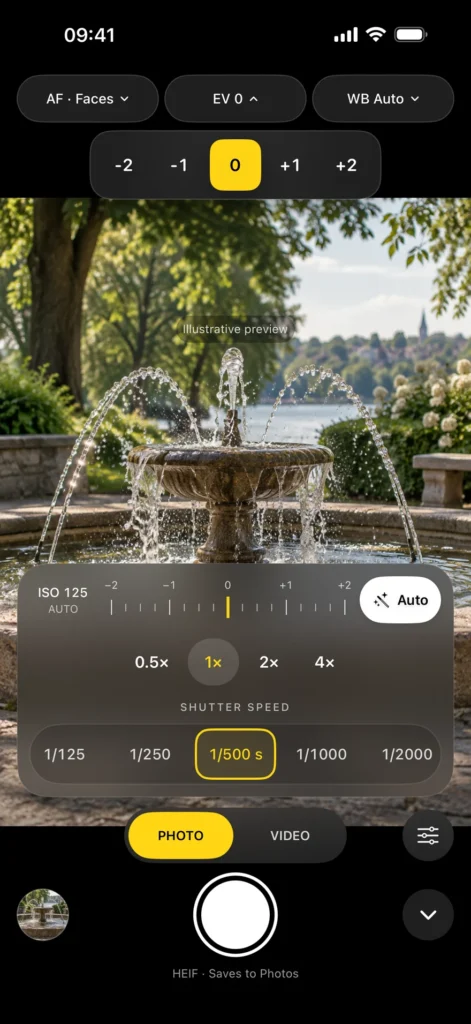
Exposure compensation
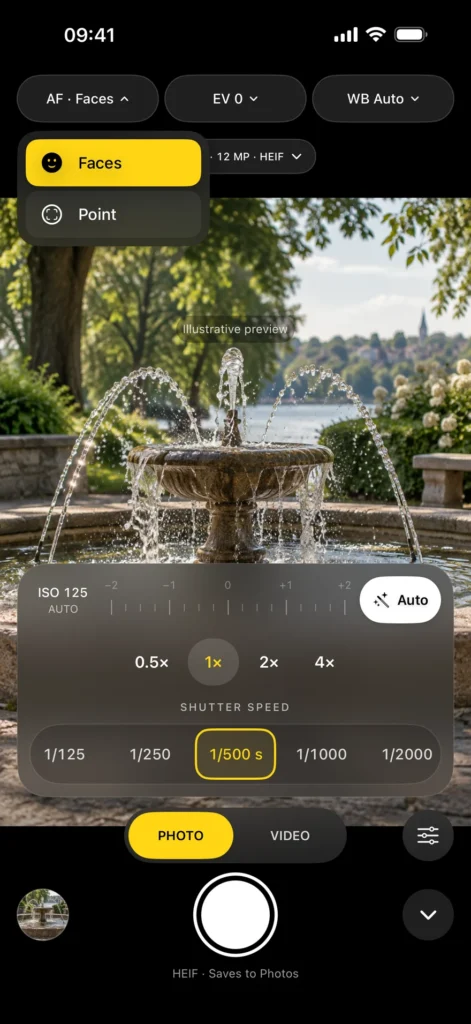
Focus options
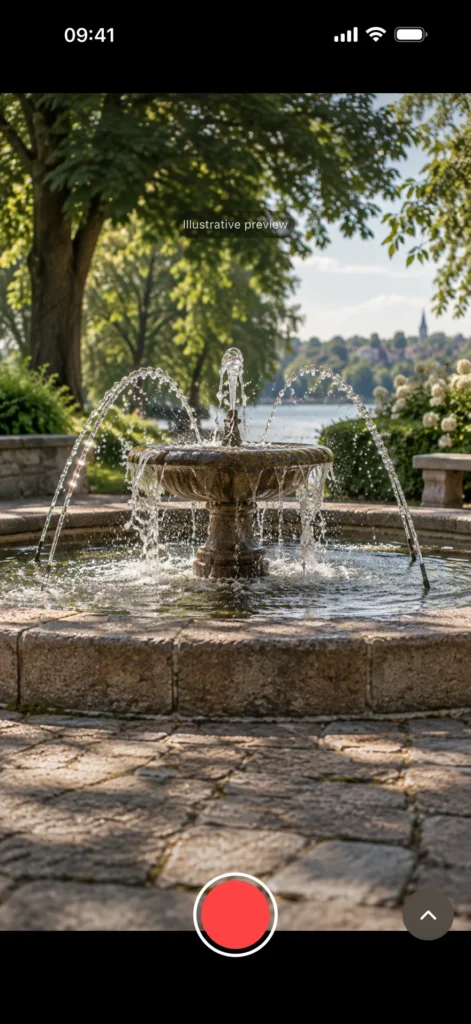
A clearer view
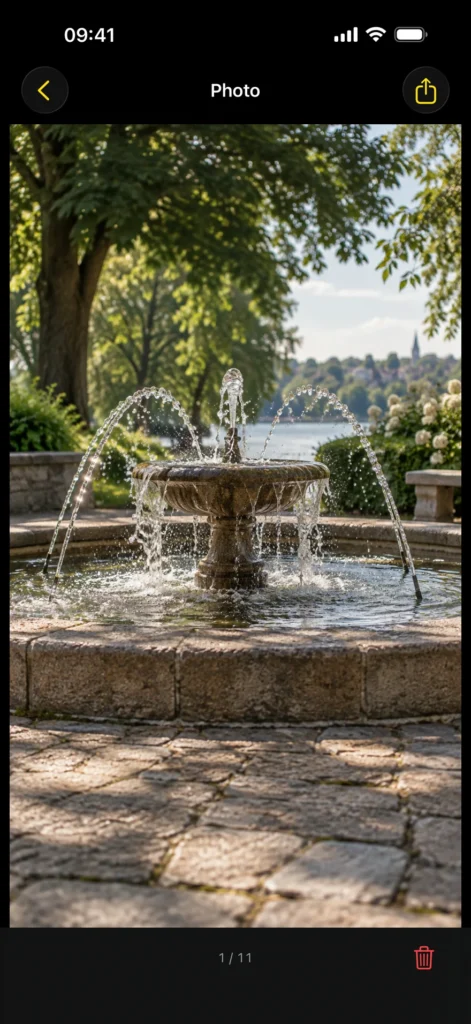
Built-in media viewer
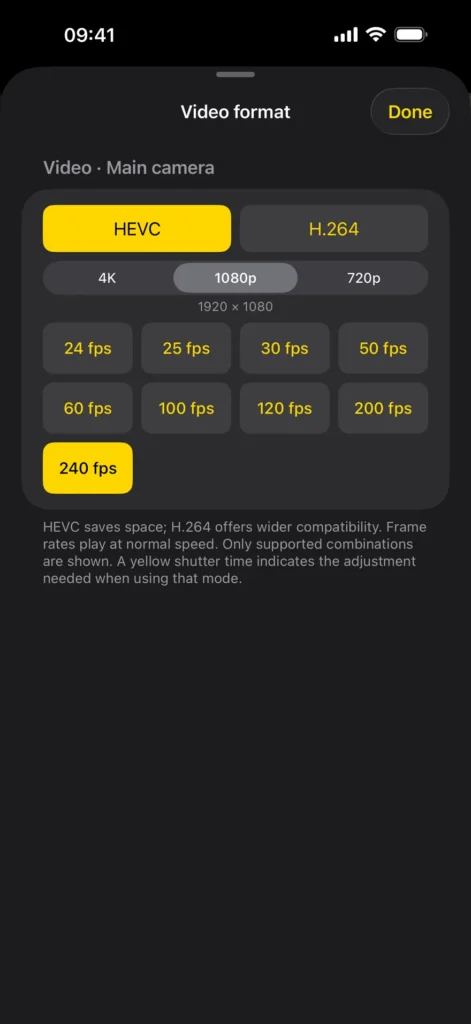
Video format settings
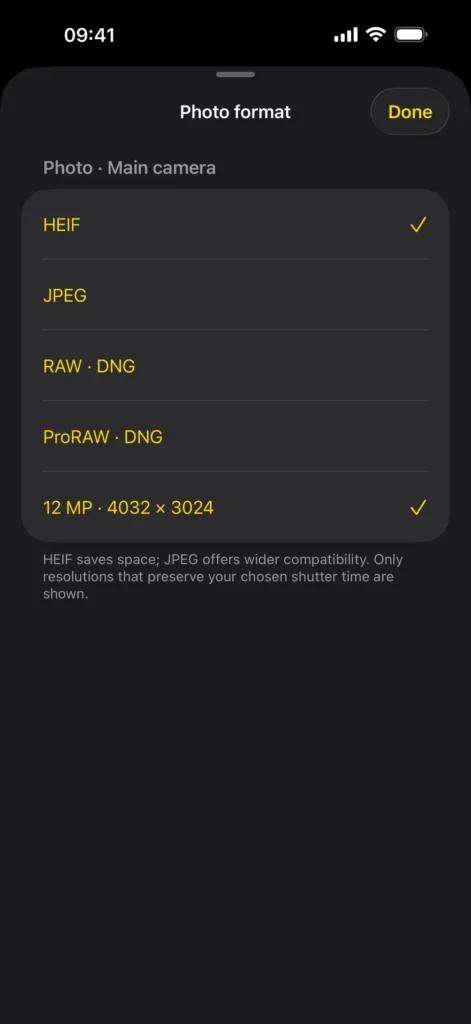
Photo format settings
Details, formats and compatibility
Shutter priority for iPhone photos and video
In S-mode, shutter speed is your creative choice. Pick the time you want and the app adjusts ISO automatically, within your camera’s limits. You can concentrate on the moment instead of balancing two exposure settings at once.
Freeze a moment. Or let it flow.
Choose a fast shutter to reduce motion blur in moving people, pets, sport or handheld video. Choose a slower shutter to show movement in flowing water, light trails or a moving subject. Photo exposures reach 1 second on supported cameras, with fast settings up to 1/8000 second where available.
For video, a faster shutter can make individual frames clearer, while a slower shutter gives movement more blur. There is no single best look: choose the shutter that suits what you are filming. Available video shutter times also depend on frame rate.
Use a steady support or tripod for a sharp background during long exposures. Fast shutter speeds need sufficient light; higher ISO can increase noise.
A simple wheel. A little help when you want it.
Swipe the shutter wheel or tap a time. Each step gives a subtle haptic tick, and your selected shutter speed stays in the yellow frame. Photo and Video remember their own shutter speeds, even after you close the app.
The live exposure meter shows whether brightness is above or below your selected EV target. Tap the white Auto button for a one-time shutter adjustment using the current light measurement, then carry on with that shutter speed and automatic ISO. Auto helps with exposure; it does not decide how a moving subject should look.
Exposure compensation from −2 to +2 EV lets you ask for a darker or brighter result while keeping your shutter fixed. If the camera reaches its ISO limits, it may not achieve the requested brightness.
Photos, from everyday shots to RAW
Capture still images with your chosen shutter speed, automatic ISO and selected white balance. Choose HEIF for smaller files or JPEG for broad compatibility. Supported cameras also offer RAW and Apple ProRAW DNG for more flexibility when editing.
RAW records minimally processed sensor data. Apple ProRAW combines RAW flexibility with Apple’s image processing. The app offers formats and resolutions compatible with keeping your shutter speed under manual control. 24 MP and 48 MP photos are not available in this version.
Video with the motion you choose
Record video with sound in 4K, 1080p or 720p. Choose space-saving HEVC or widely compatible H.264, with compatible frame rates up to 240 fps. High-frame-rate recordings play at normal speed and can be slowed down in an editor.
The app discovers available cameras and supported settings on your iPhone. Tap the format control for quick access, or prepare Photo and Video settings independently in Settings. Preferences are remembered; camera limitations use a compatible alternative.
Choose your view and focus
Switch between available rear cameras. Where supported, native 2× uses a crop from the main sensor for a closer view. RAW and Apple ProRAW use the physical cameras and are unavailable at 2×.
Use continuous autofocus with face priority, tap to choose a focus point, or touch and hold to focus and lock. A yellow frame and lock indicator show the selected point. Focus options depend on the camera.
Colour and controls within reach
Keep white balance on Auto, or choose Daylight, Cloudy, Shade, Tungsten or Fluorescent. Focus, EV and white balance sit at the top, with format choices just below. ISO, the exposure meter and the Auto button are together above the lens choices.
Hide the controls when you want a clearer view. Only capture and the button to bring the controls back remain available, along with recording time and important warnings.
Review without leaving the camera app
Photos and videos save directly to your Photos library. Tap the thumbnail to open the latest accessible photo or video, including items taken with other apps.
– Swipe right for older items and left for newer ones.
– Double-tap a photo to switch between the whole image and 100% viewing, centred around where you tapped. Pinch to zoom and drag to inspect detail.
– Play video, share the displayed item, or delete it after confirming with iOS.
– Tap Back at the top left or swipe down to return to the camera. When a photo is zoomed, swipes pan the image; zoom out before swiping down to close.
Items stored in iCloud may need to download. Photos access is optional: full access browses the library, limited access shows only allowed items, and you can keep capturing without read access.
Optional location. Private by design.
Location tagging is off by default. Turn it on to attach an available recent position to a photo or video in Photos. Capture continues if no position is available. The app does not embed location in the original image or video file. Photos may sync or share location according to your settings.
No account, advertising, tracking or third-party analytics. Your media and location are not sent to the developer. The app keeps technical capture reports locally on your phone. Quick help, a privacy policy and a direct support link are available in Settings.
If saving fails, the original stays in the app so you can retry from Settings or retrieve it using Files.
Compatibility
Requires an iPhone running iOS 17 or later. Lenses, shutter range, resolutions, formats, frame rates and focus options depend on the device and selected camera. Only combinations compatible with shutter-priority capture are offered. Shutter speed controls motion blur; it does not replace accurate focus or guarantee a sharp image.
Download and support
Download S-Mode Camera on the App Store. For help, visit S-Mode Camera support or read the S-Mode Camera privacy policy.
Made for your iPhone. Made by gostworks.
Need a hand? Get support · S-Mode Camera privacy policy · Explore more games & apps